Pallet Review
The Pallet Review page (menu Diagnostics → Pallet Review) is used to assess the quality of the calculated pallets. A single pallet is displayed at a time, can be inspected in 3D and in 2D, and is then rated as Good or Bad. The rating is stored together with the pallet and can be evaluated later on the Reviews page.
The page is also the target of the Pallet review links on the Pallet Height Violation page and in the Reviews table.
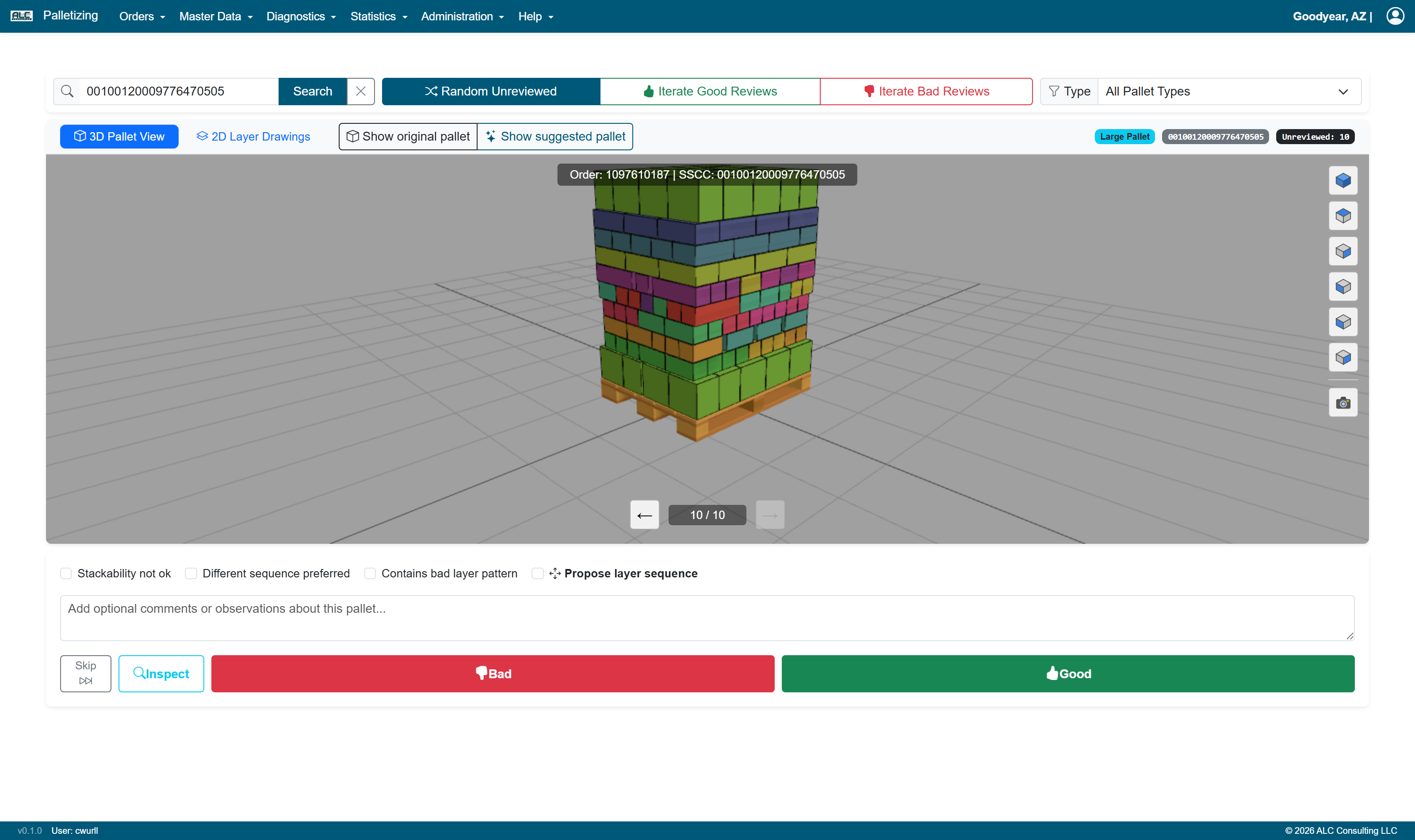
Control Header
| Control | Description |
|---|---|
| Search SSCC or Pallet No | Loads a specific pallet. The SSCC is matched exactly first, then as a partial match; a pure number or a value of the form PAL-<no> is interpreted as pallet number. Confirm with Enter or Search, discard with the x button |
| Random Unreviewed | Picks a random pallet that has not been reviewed yet (default mode) |
| Iterate Good Reviews | Steps through all pallets already rated Good |
| Iterate Bad Reviews | Steps through all pallets already rated Bad |
| Type | Restricts the selection to a single pallet type |
If no pallet matches the current mode and filter, an empty state is shown ("All Pallets Reviewed!", "No Good Reviews Found", "No Bad Reviews Found" or "Pallet Not Found") together with a Check Again button.
Visualization
The upper panel shows the currently selected pallet:
| Tab / Control | Description |
|---|---|
| 3D Pallet View | Interactive 3D model of the complete pallet |
| 2D Layer Drawings | Two-dimensional drawings of the individual layers |
| Show original pallet | Displays the pallet as it was calculated by the algorithm (default) |
| Show suggested pallet | Displays the pallet with the layer sequence proposed in the feedback form |
The badges on the right-hand side show the pallet type, the SSCC, the progress within the current mode (number of unreviewed pallets, or "Good/Bad Review n of m") and — if the pallet has already been rated — a Reviewed badge with the existing rating.
Feedback Form

| Field | Description |
|---|---|
| Stackability not ok | The layers of the pallet must not be stacked in this way |
| Different sequence preferred | Another layer sequence would be preferred |
| Contains bad layer pattern | At least one of the used layer patterns is not suitable |
| Propose layer sequence | Opens the layer sequence bar in which a concrete sequence can be proposed |
| Comment | Free text field for additional observations |
Proposing a Layer Sequence
When Propose layer sequence is activated, all layers of the pallet are shown as cards in the sequence bar — left is the bottom layer, right is the top layer. Each card shows the layer number, the pattern name, a preview of the layer and its current position.

- The cards are rearranged by drag and drop.
- Every change switches the visualization to Show suggested pallet, so that the effect of the new sequence is immediately visible.
- Reset Original Order restores the calculated sequence.
The proposed sequence is stored with the feedback and is restored when the pallet is opened again.
Actions
| Button | Description |
|---|---|
| Previous | Loads the previous pallet (only in the modes Iterate Good Reviews and Iterate Bad Reviews) |
| Skip / Next | Loads the next pallet without saving a rating |
| Delete Review | Removes an existing review from the pallet; shown only for already reviewed pallets and requires confirmation |
| Inspect | Opens the inspection panel with the technical details of the pallet |
| Bad | Saves the feedback with the rating Bad and loads the next pallet |
| Good | Saves the feedback with the rating Good and loads the next pallet |
Inspection
Inspect opens the Pallet Inspection panel below the feedback form. The data is fetched on demand for the currently displayed pallet and is grouped into five tabs:
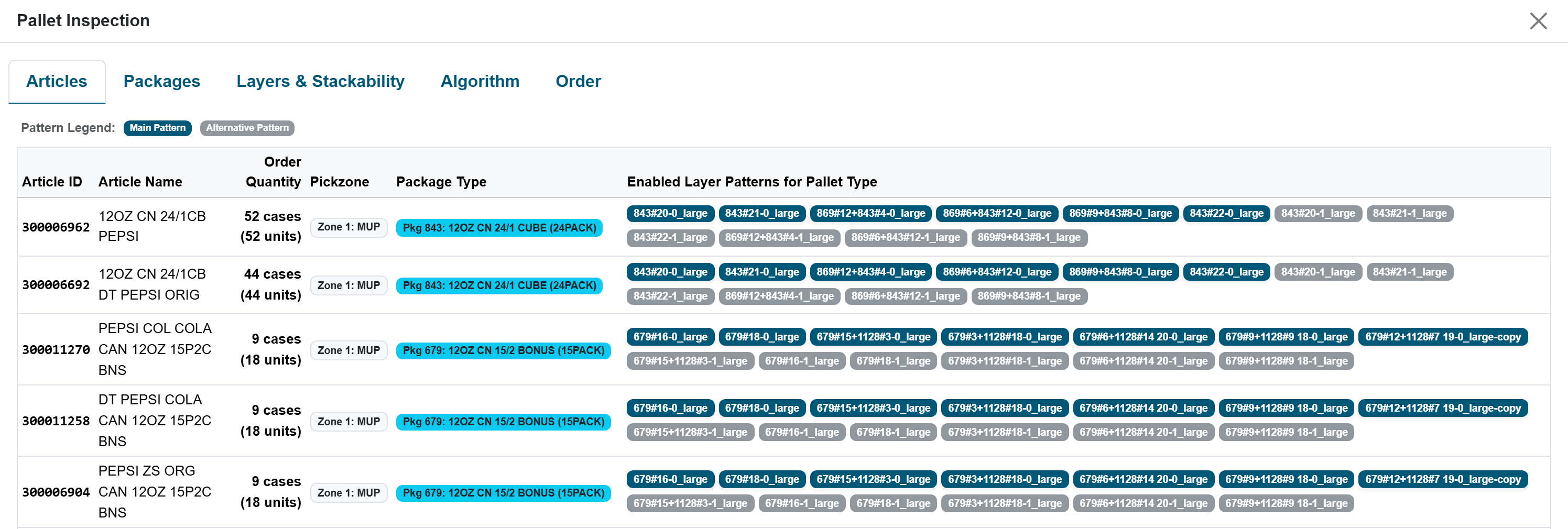
| Tab | Content |
|---|---|
| Articles | All articles of the order with order quantity (cases and units), pick zone, package type and the layer patterns enabled for the pallet type |
| Packages | The package types of the order with total quantity, number of articles, the involved pick zones and the enabled layer patterns |
| Layers & Stackability | The layers of the pallet (layer number, layer ID, layer type, pattern name, number of articles) and the stackability matrix of the occurring pattern combinations |
| Algorithm | Calculating algorithm, creation time of the plan, target delivery date and order ID |
| Order | Order header data (order ID, multi-order ID, pallet type, delivery date, calculation attempts, start and end of the calculation), the complete order items and the raw order data as JSON |
In the Articles and Packages tabs, the layer patterns are colour coded: a dark blue badge marks the main pattern, a grey badge an alternative pattern.
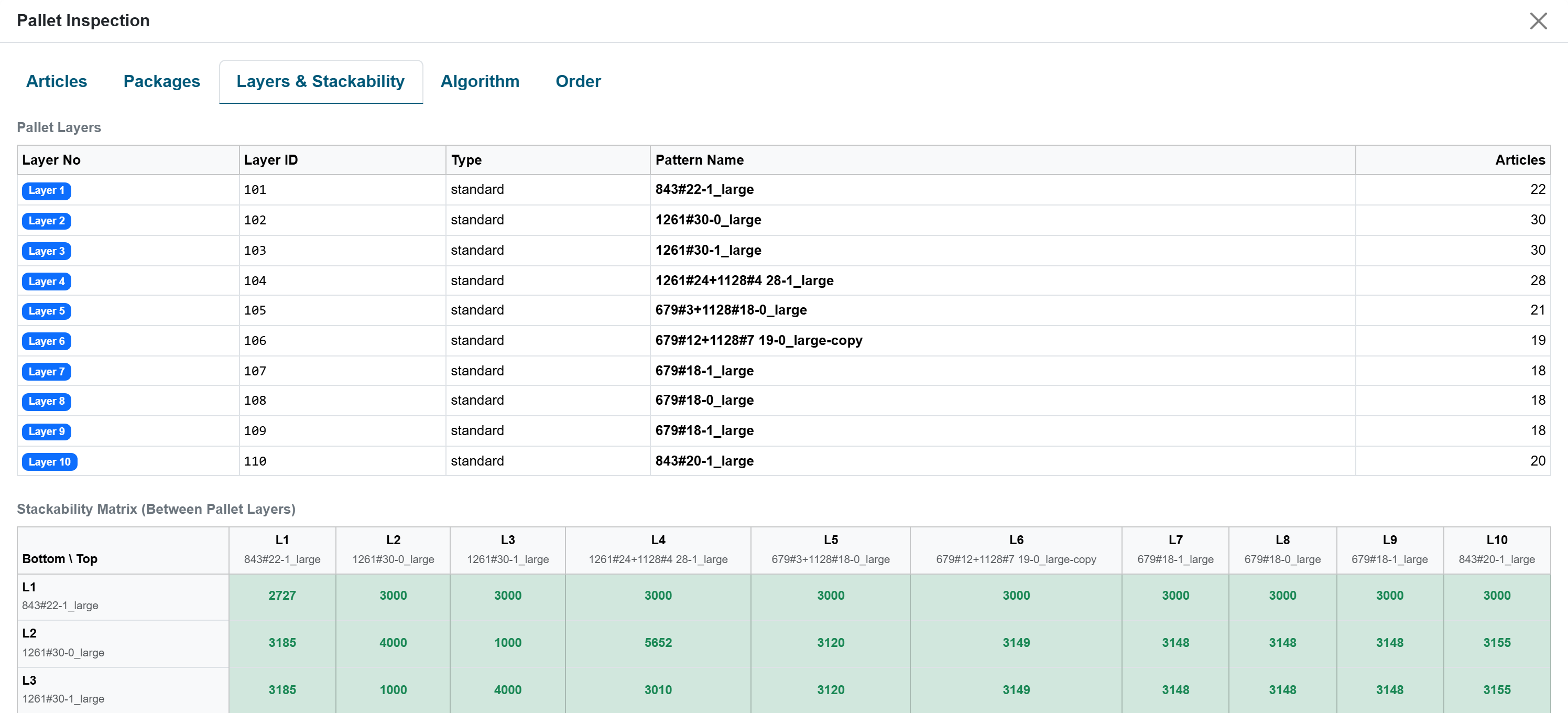
In the stackability matrix, the rows are the bottom layers and the columns the top layers. A green cell means that the combination is stackable and shows the stacking cost; a dash means it is not stackable. Every cell is a link that opens the Stacking Matrix page with the corresponding pallet type and the two patterns already preselected.