SKU Master
The SKU Master page allows you to view, create, edit, import, and delete articles (also called SKU = Stock Keeping Unit). Each article is linked to exactly one Package Type, which defines its physical dimensions and packaging format.
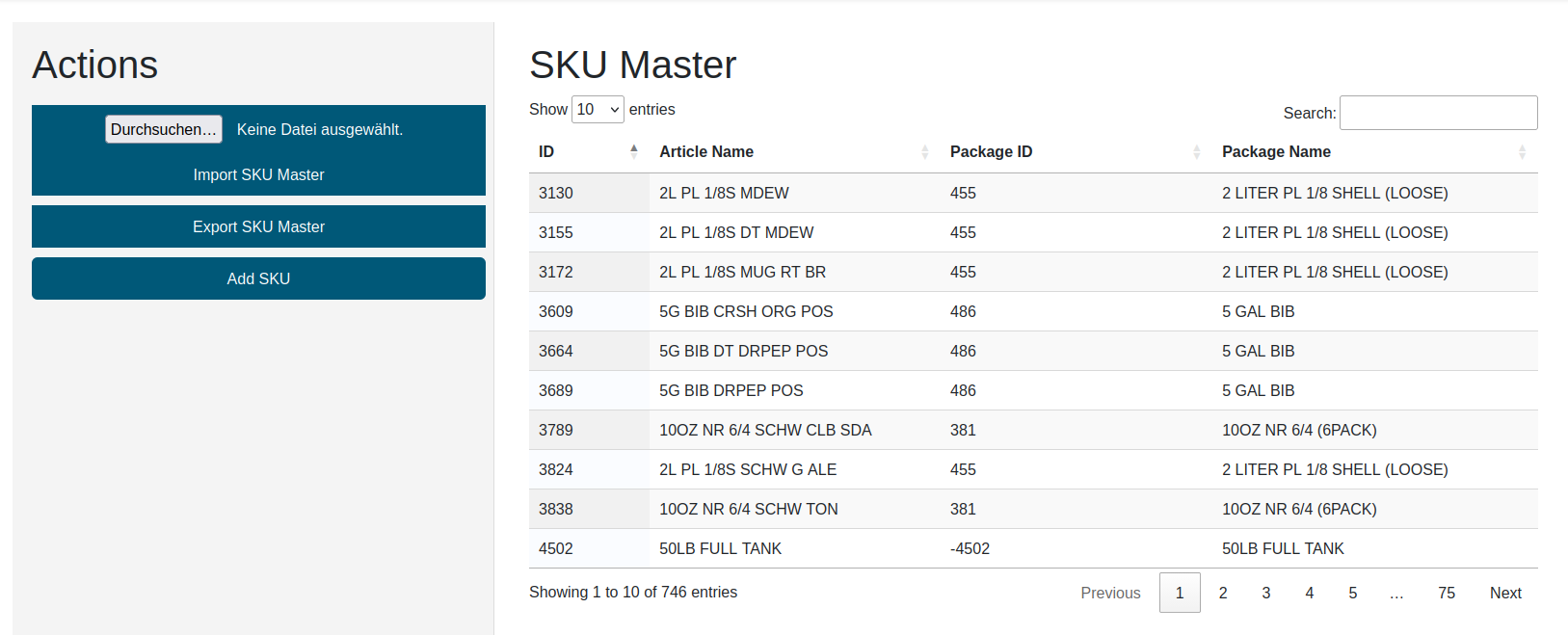
The core parameters of an article are:
| Parameter | Description |
|---|---|
| ID | Unique id of an article |
| Article Name | Corresponding article name |
| Package ID | Unique assignment of an article to a Package Type |
| Package Name | Corresponding package type name |
SKU Master Table
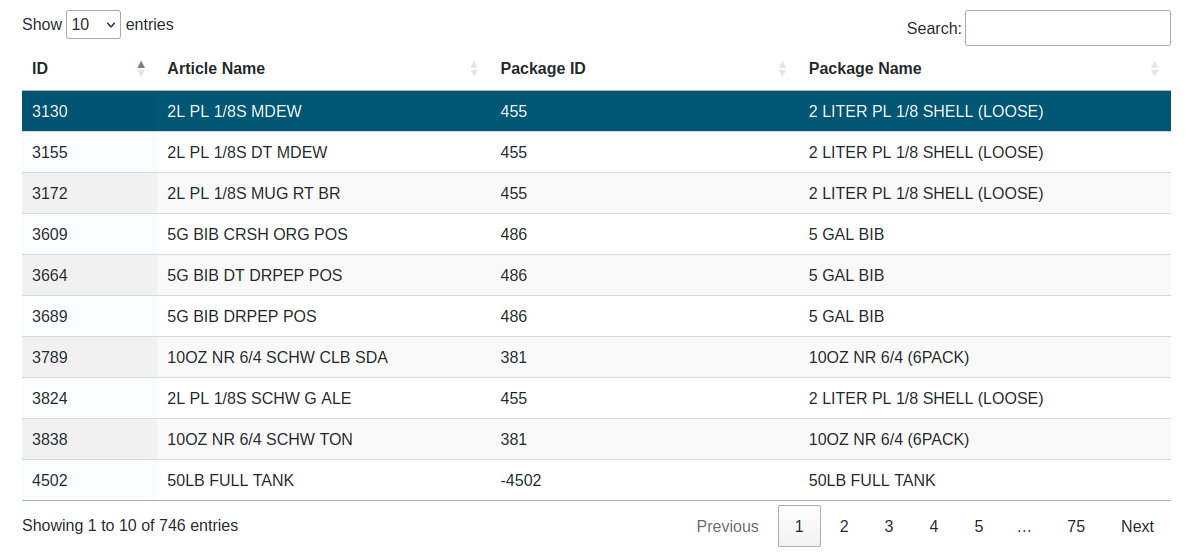
| Field | Description |
|---|---|
| ID | Unique Article ID |
| Article Name | Article name |
| Package ID | Package type ID this article belongs to |
| Package Name | Corresponding package name |
| Show ... entries | With changing this value you can display more or less records in the table |
| Search | You can search any element by typing any string into this field. The x button clears the search again |
| Showing x to y of z | Indicates which part of the (filtered) article list is currently displayed |
| Previous / Next | You can scroll through the list of articles. The current position is shown as "Page n of m" |
Context Sensitive Menu of SKU Master Table
With a right-click on any line in the SKU Master Table the following context sensitive menu will pop up:
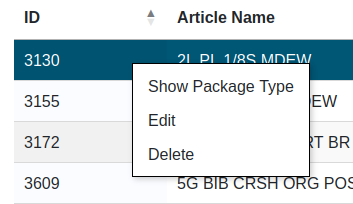
| Menu Item | Description |
|---|---|
| Show Package Type | Opens the corresponding Package Type page for the selected article |
| Edit | Opens the Edit SKU dialog to change the values of the selected article |
| Delete | Deletes the selected article |
Add SKU
A new article can be added via the Add New SKU button in the action bar at the top of the page.
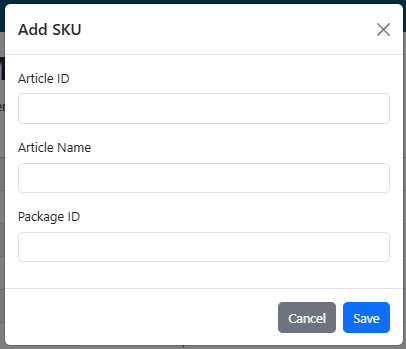
| Field | Description |
|---|---|
| Article ID | Unique article id |
| Article Name | Article name |
| Package ID | Package type id to which this article belongs |
With the button "Save" you can save all changes. With the button "Cancel" you can abort all changes.
Edit SKU
An existing article can be modified via right-click → "Edit SKU" in the SKU Master Table, or by double-clicking the corresponding table row.
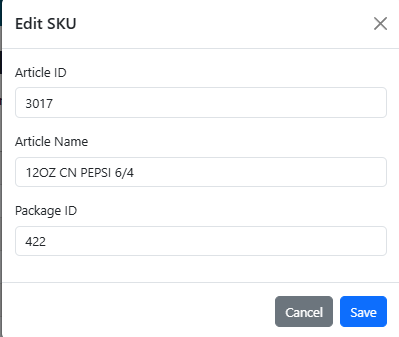
| Field | Description |
|---|---|
| Article ID | Unique article id (should not be changed) |
| Article Name | Article name |
| Package ID | Package type id to which this article belongs |
With the button "Save" you can save all changes. With the button "Cancel" you can abort all changes.
Actions
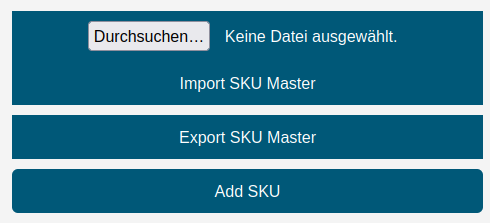
The action bar above the table contains the following controls:
| Control | Description |
|---|---|
| Add New SKU | Opens the Add SKU dialog to create a new article |
| File input | Select an Excel file (.xlsx) to be imported |
| Replace data | If this switch is enabled, all existing articles are deleted before the file is imported. A confirmation dialog must be acknowledged. If the import fails, the previous data is restored automatically. If the switch is off, the imported records are added to / merged with the existing data |
| Import SKU Master | Imports articles from the selected Excel file |
| Export SKU Master | Creates an Excel file with all stored articles and provides it as download (right-hand side of the action bar) |
The result of an import is reported directly above the table as a coloured message (success, success with warnings, or failure).
Note: The Import, Add SKU, Edit, and Delete functions are only available to users with the Editor or Administrator role. Users with read-only access see these controls greyed out and disabled ("Edit permission required").
The import Excel file must contain the following fields as column headers in the first row:
| Column | Notes |
|---|---|
| article_id | Unique article identifier (integer) |
| article_name | Article name (text) |
| package_id | Must match an existing Package Type |