MLP Layer Configuration
The MLP Layer Configuration page allows you to view, create, edit, import, and delete MLP Layer entries.
An MLP Layer entry defines which Layer Pattern must be used for a specific article when it is picked from a given range of Pick Zones. This mapping enables high-speed, layer-based palletizing for pre-configured article–pattern–zone combinations. Articles that are not listed in the MLP Layer Configuration fall back to the standard palletizing logic.
The core parameters of an MLP Layer entry are:
| Parameter | Description |
|---|---|
| MLP Layer ID | Unique internal identifier |
| Article ID | Link to the SKU Master — the article to be palletized |
| Pattern ID | Link to the Layer Pattern to be used for this article |
| Pick Zone ID From | Start of the pick zone range this rule applies to |
| Pick Zone ID To | End of the pick zone range this rule applies to |
MLP Layer Configuration Table
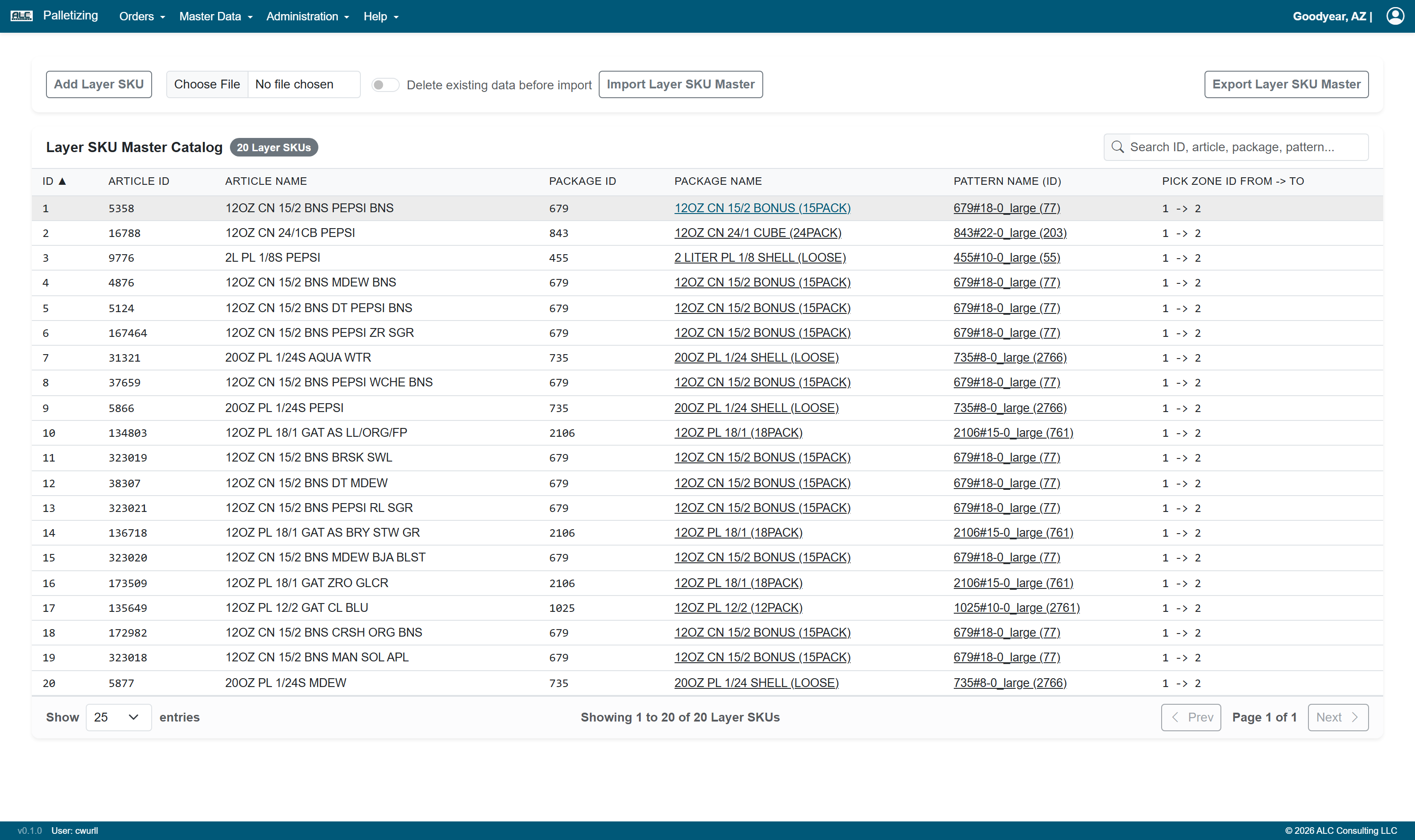
| Column | Description |
|---|---|
| ID | Unique MLP Layer identifier |
| Article ID | Article identifier |
| Article Name | Article name (resolved from the SKU Master) |
| Package ID | Package type identifier linked to the article |
| Package Name | Package type name (resolved from the Package Type Master) |
| Pattern Name (ID) | Name and ID of the assigned layer pattern, e.g. PatternA (12) |
| Pick Zone ID From -> To | Pick zone range this rule applies to, e.g. 1 -> 4 |
| Show ... entries | Change this value to display more or fewer records in the table |
| Search | Filter the list by typing any string into this field |
| Showing x to y of z | Indicates which part of the (filtered) list is currently displayed |
| Previous / Next | Page through the list. The current position is shown as "Page n of m" |
Context Sensitive Menu
Right-clicking any row opens the context menu:
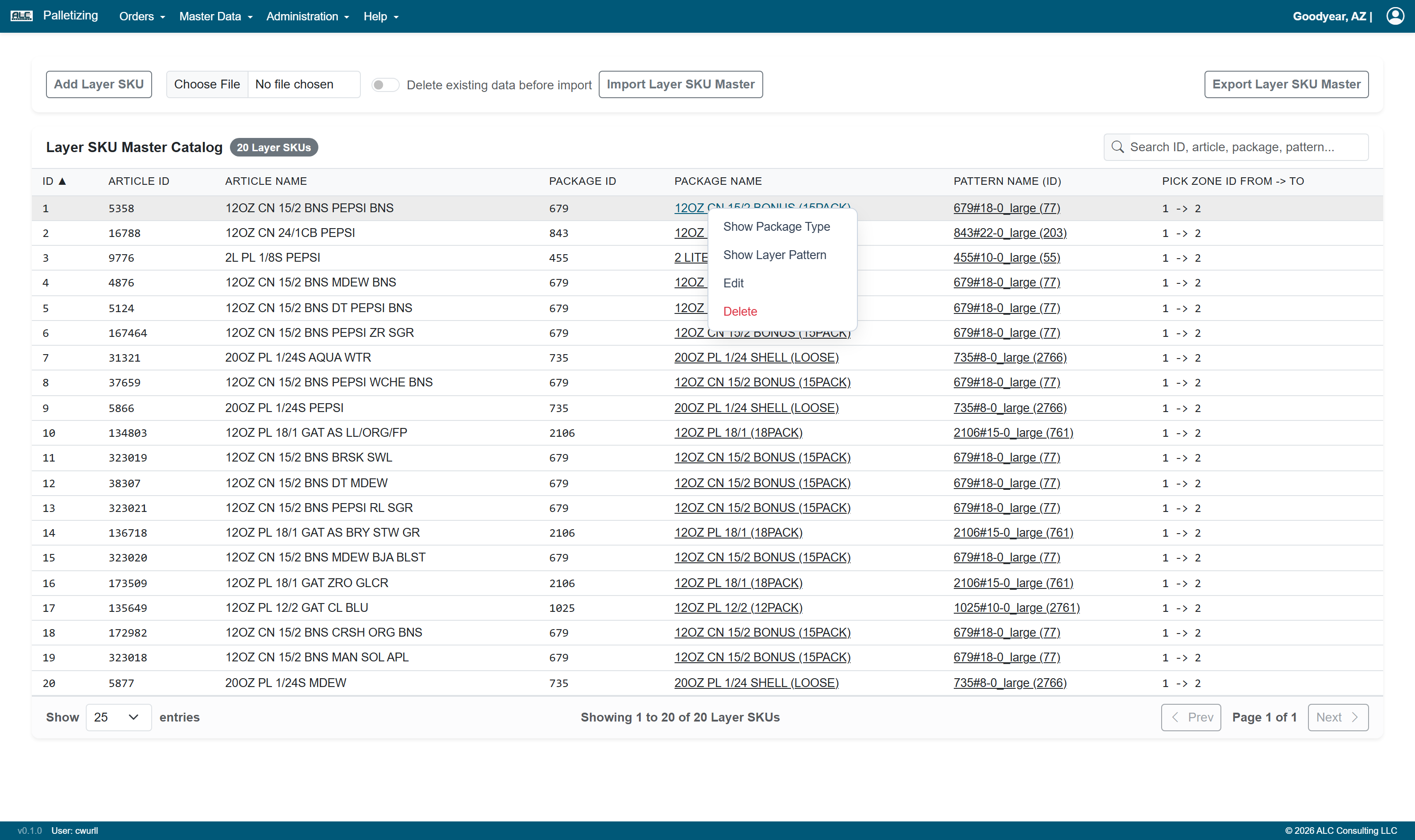
| Menu Item | Description |
|---|---|
| Show Package Type | Navigates to the Package Type Master page for the linked package |
| Show Layer Pattern | Navigates to the Layer Patterns page, pre-selecting the linked pattern |
| Edit | Opens the Edit MLP Layer dialog to modify the selected entry |
| Delete | Permanently deletes the selected entry after confirmation |
Add MLP Layer
A new entry can be created via the Add MLP Layer button in the action bar at the top of the page.
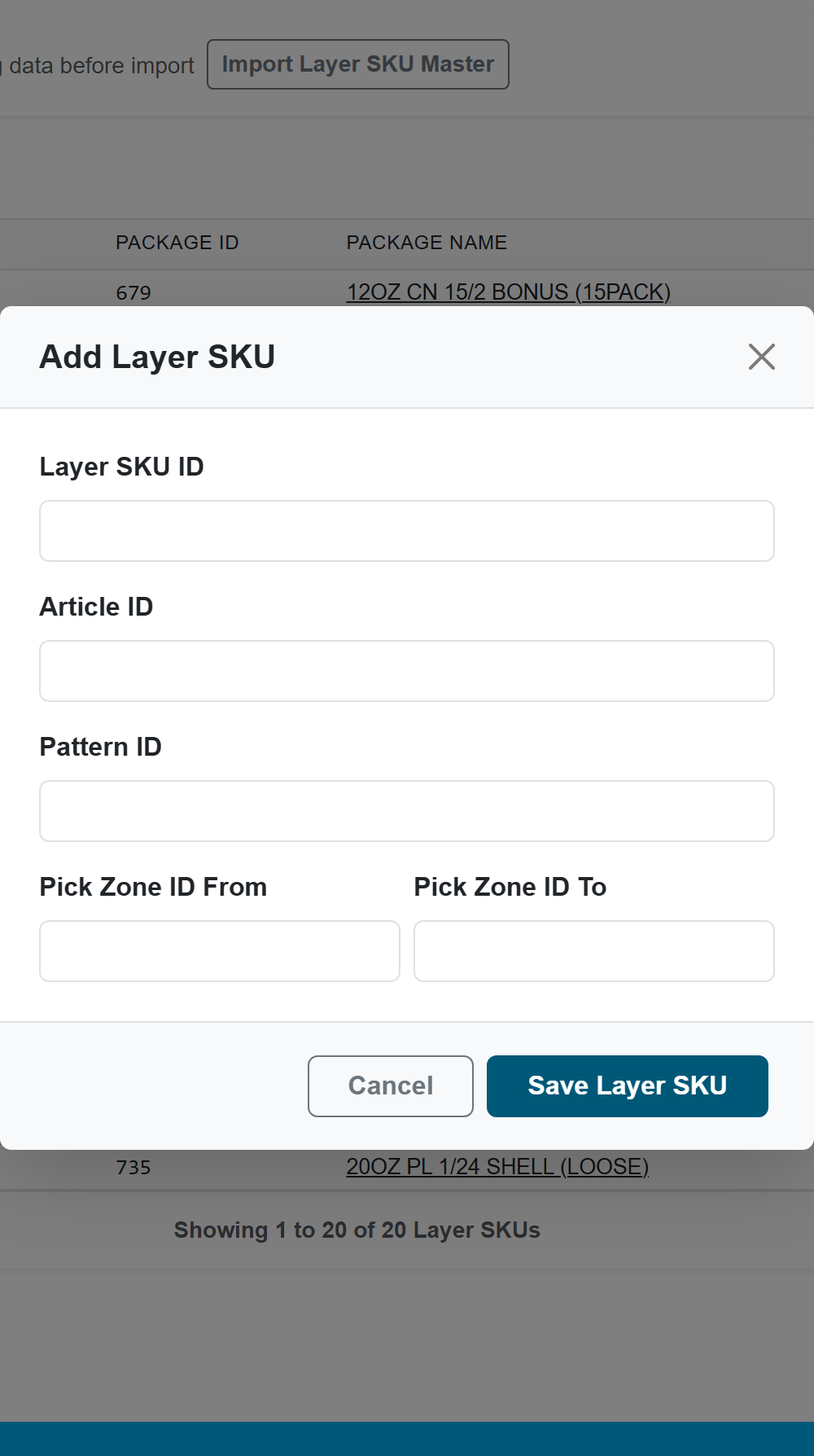
| Field | Description |
|---|---|
| MLP Layer ID | Unique identifier (leave blank to auto-assign) |
| Article ID | ID of the article from the SKU Master |
| Pattern ID | ID of the Layer Pattern to assign |
| Pick Zone ID From | First pick zone in the range |
| Pick Zone ID To | Last pick zone in the range |
Confirm with Save or abort with Cancel.
Edit MLP Layer
An existing entry can be modified via right-click → Edit in the table, or by double-clicking the corresponding table row. The same dialog and fields as Add MLP Layer are used, with the existing values pre-filled.
Actions
The action bar above the table contains the following controls:
| Control | Description |
|---|---|
| File input | Select an Excel file (.xlsx) to be imported |
| Delete existing data before import | If this switch is enabled, all existing records are deleted before the file is imported. A confirmation dialog must be acknowledged. If the import fails, the previous data is restored automatically. If the switch is off, the imported records are added to / merged with the existing data |
| Import MLP Layer Configuration | Imports MLP Layer entries from the selected Excel file |
| Export MLP Layer Configuration | Creates an Excel file with all stored entries and provides it as download |
| Add MLP Layer | Opens the Add MLP Layer dialog to create a new entry |
Note: The Import, Add MLP Layer, Edit, and Delete functions are only available to users with the Editor or Administrator role. Users with read-only access see these controls greyed out and disabled ("Edit permission required").
The import and export Excel file contains the following columns:
| Column | Description |
|---|---|
| high_speed_id | Unique MLP Layer identifier (integer) |
| article_id | Article identifier — must match an existing article |
| article_name | Article name (informational, not used on import) |
| package_id | Package type identifier (informational, not used on import) |
| package_name | Package type name (informational, not used on import) |
| pattern_id | Pattern identifier — must match an existing layer pattern |
| pattern_name | Pattern name (informational, not used on import) |
| pickzone_id_from | Start of the pick zone range |
| pickzone_id_to | End of the pick zone range |