Pickzone Transfer
The Pickzone Transfer page allows you to view, create, edit, import, and delete pickzone transfer rules.
A Pickzone Transfer defines an allowed transition between two Pick Zones. Together, the set of transfer rules forms the permitted material flow sequence for pallet building. A pallet may only move from one pick zone to another if a corresponding transfer entry exists.
Example: A transfer from MLP → MUP means a pallet that received layers in the MLP zone is
allowed to continue to the MUP zone for additional articles. Without this entry, that transition is forbidden.
The core parameters of a pickzone transfer are:
| Parameter | Description |
|---|---|
| Transfer ID | Unique internal identifier (auto-assigned) |
| Pickzone From | The source Pick Zone — where the pallet comes from |
| Pickzone To | The target Pick Zone — where the pallet goes next |
Each From–To combination must be unique. Duplicate transfers are rejected.
Pickzone Transfer Table
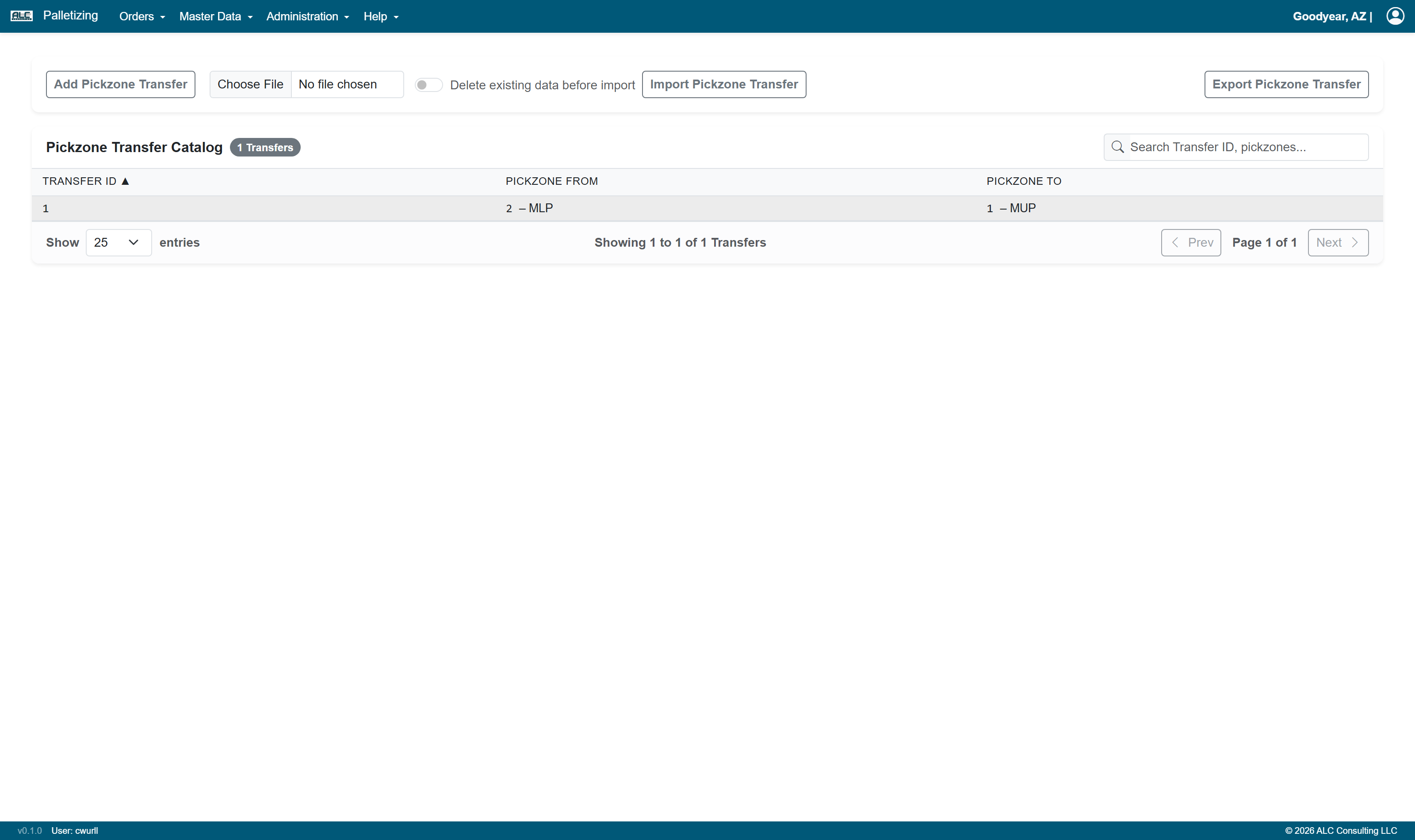
| Column | Description |
|---|---|
| Transfer ID | Unique transfer identifier |
| Pickzone From | Source pick zone ID and name, e.g. 1 – MLP |
| Pickzone To | Target pick zone ID and name, e.g. 2 – MUP |
| Show ... entries | Change this value to display more or fewer records in the table |
| Search | Filter the list by typing any string into this field |
| Showing x to y of z | Indicates which part of the (filtered) list is currently displayed |
| Previous / Next | Page through the list. The current position is shown as "Page n of m" |
Context Sensitive Menu
Right-clicking any row opens the context menu:
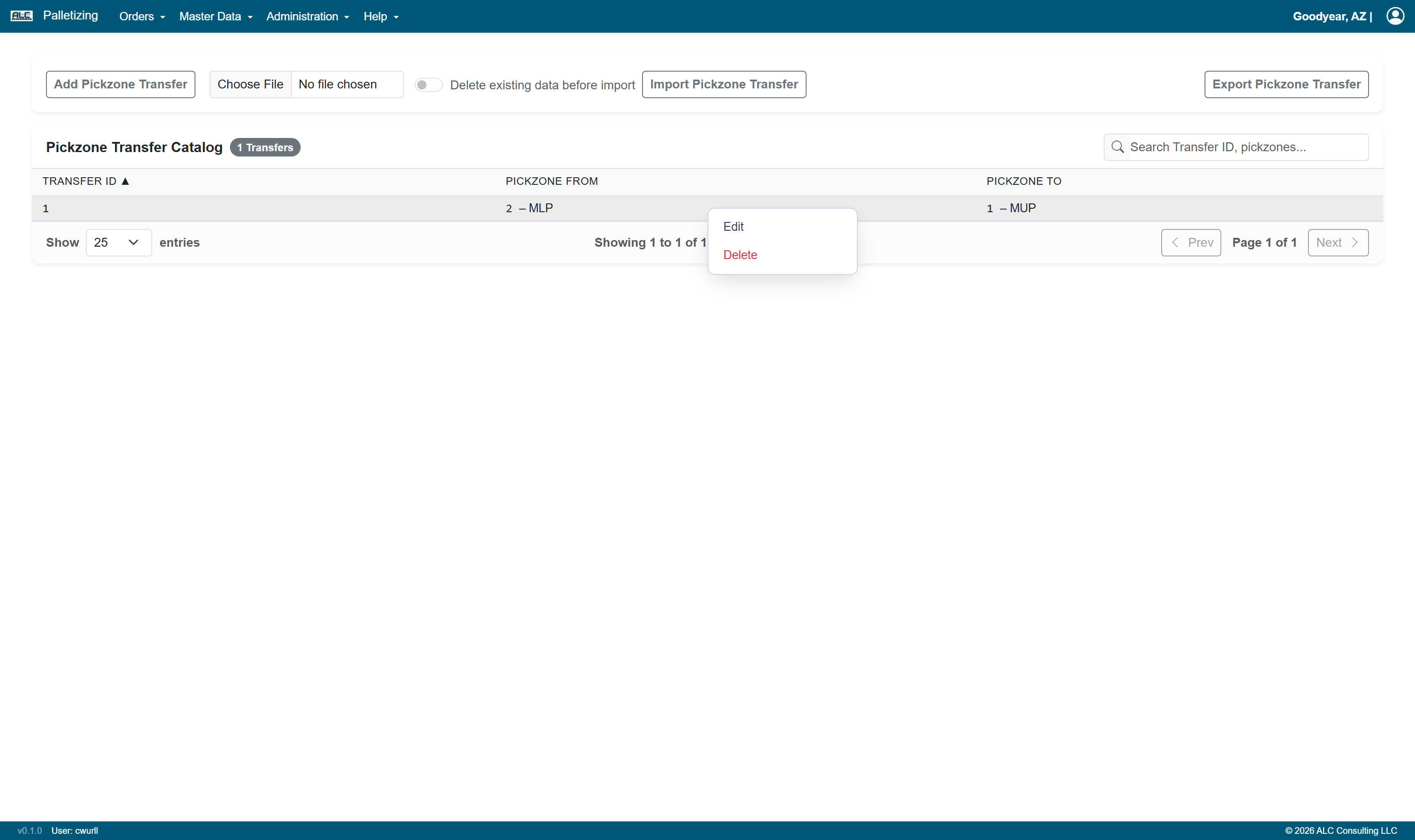
| Menu Item | Description |
|---|---|
| Edit | Opens the Edit Pickzone Transfer dialog to change the From or To pick zone |
| Delete | Permanently deletes the selected transfer rule after confirmation |
Add Pickzone Transfer
A new transfer rule can be created via the Add Pickzone Transfer button in the action bar at the top of the page.
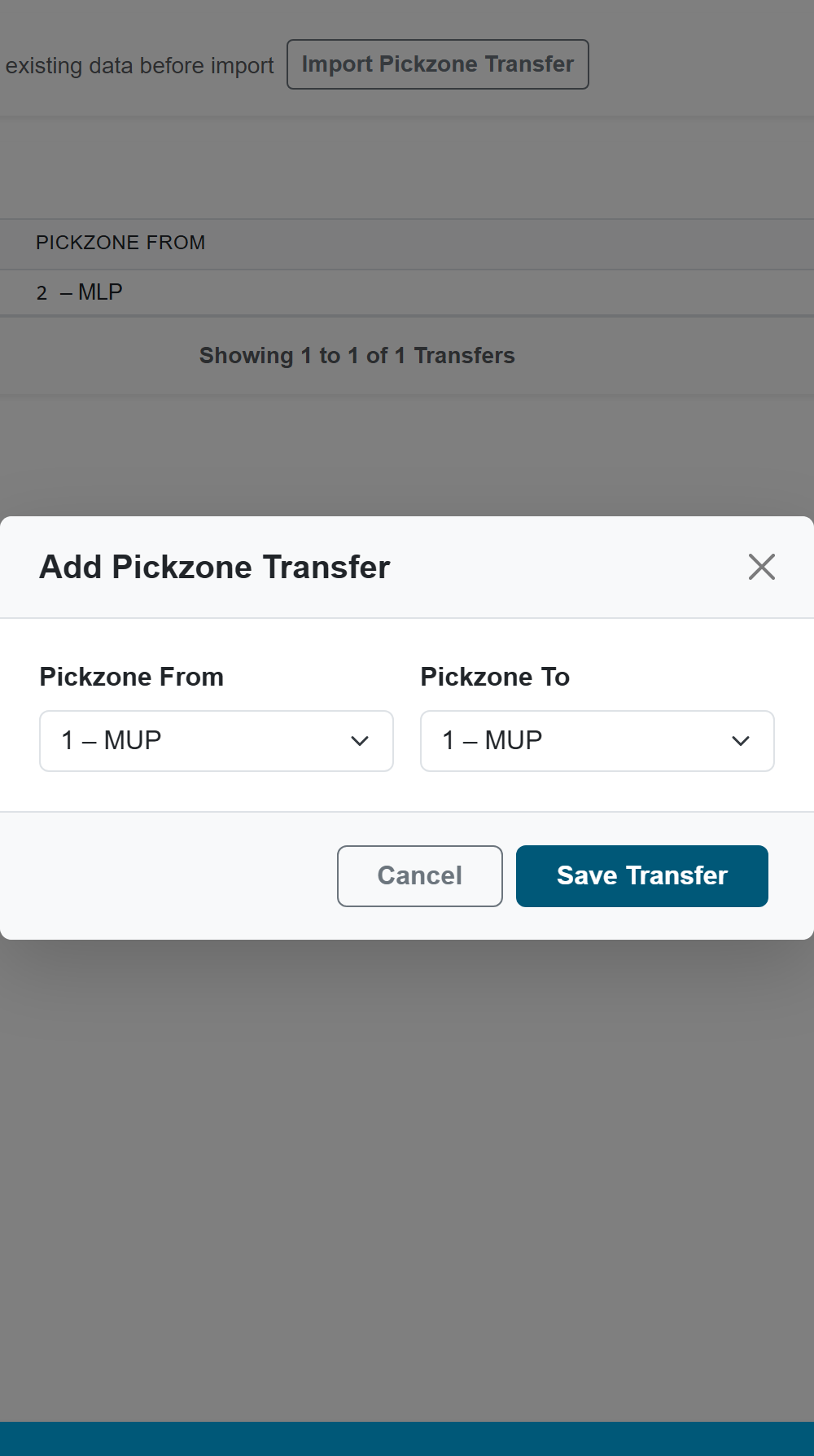
| Field | Description |
|---|---|
| Pickzone From | Dropdown of all available pick zones — select the source zone |
| Pickzone To | Dropdown of all available pick zones — select the target zone |
The Transfer ID is assigned automatically. Confirm with Save or abort with Cancel.
Edit Pickzone Transfer
An existing transfer rule can be modified via right-click → Edit in the table, or by double-clicking the corresponding table row. The same dialog as Add Pickzone Transfer is used, with the current From and To values pre-selected.
Saving an edited transfer deletes the original rule and creates a new one with the updated values.
Actions
The action bar above the table contains the following controls:
| Control | Description |
|---|---|
| File input | Select an Excel file (.xlsx) to be imported |
| Delete existing data before import | If this switch is enabled, all existing records are deleted before the file is imported. A confirmation dialog must be acknowledged. If the import fails, the previous data is restored automatically. If the switch is off, the imported records are added to / merged with the existing data |
| Import Pickzone Transfer | Imports pickzone transfer rules from the selected Excel file |
| Export Pickzone Transfer | Creates an Excel file with all stored transfer rules and provides it as download |
| Add Pickzone Transfer | Opens the Add Pickzone Transfer dialog to create a new rule |
Note: The Import, Add, Edit, and Delete functions are only available to users with the Editor or Administrator role. Users with read-only access see these controls greyed out and disabled ("Edit permission required").
The import and export Excel file contains the following columns:
| Column | Description |
|---|---|
| transfer_id | Unique transfer identifier (integer, auto-assigned) |
| pickzone_id_from | Source pick zone ID |
| pickzone_id_to | Target pick zone ID |